The short list
The best ambidextrous "mouse" I've found isn't a mouse at all: it's Apple's Magic Trackpad, because it has no left or right side and moves between hands in a second. Then the Magic Mouse with one fix, the Logitech M190 on a budget, the Penguin vertical mouse for sore wrists, and the Logitech G PRO 2 for gamers.
Five very different devices, one rule: they have to work in both hands. That matters if you're left-handed. It matters just as much if you're right-handed and want to train the other hand without buying two mice.
Goodbye, Magic Mouse
I used Apple's Magic Mouse for years. The touch surface is a small piece of magic: swipe between pages, scroll in any direction, all with one finger. But it's flat and low, and after a long day my hand had had enough.
So I went looking for something more ergonomic that was still ambidextrous. Harder than it sounds. Almost every "comfortable" mouse is sculpted for the right hand. Here's what I found.
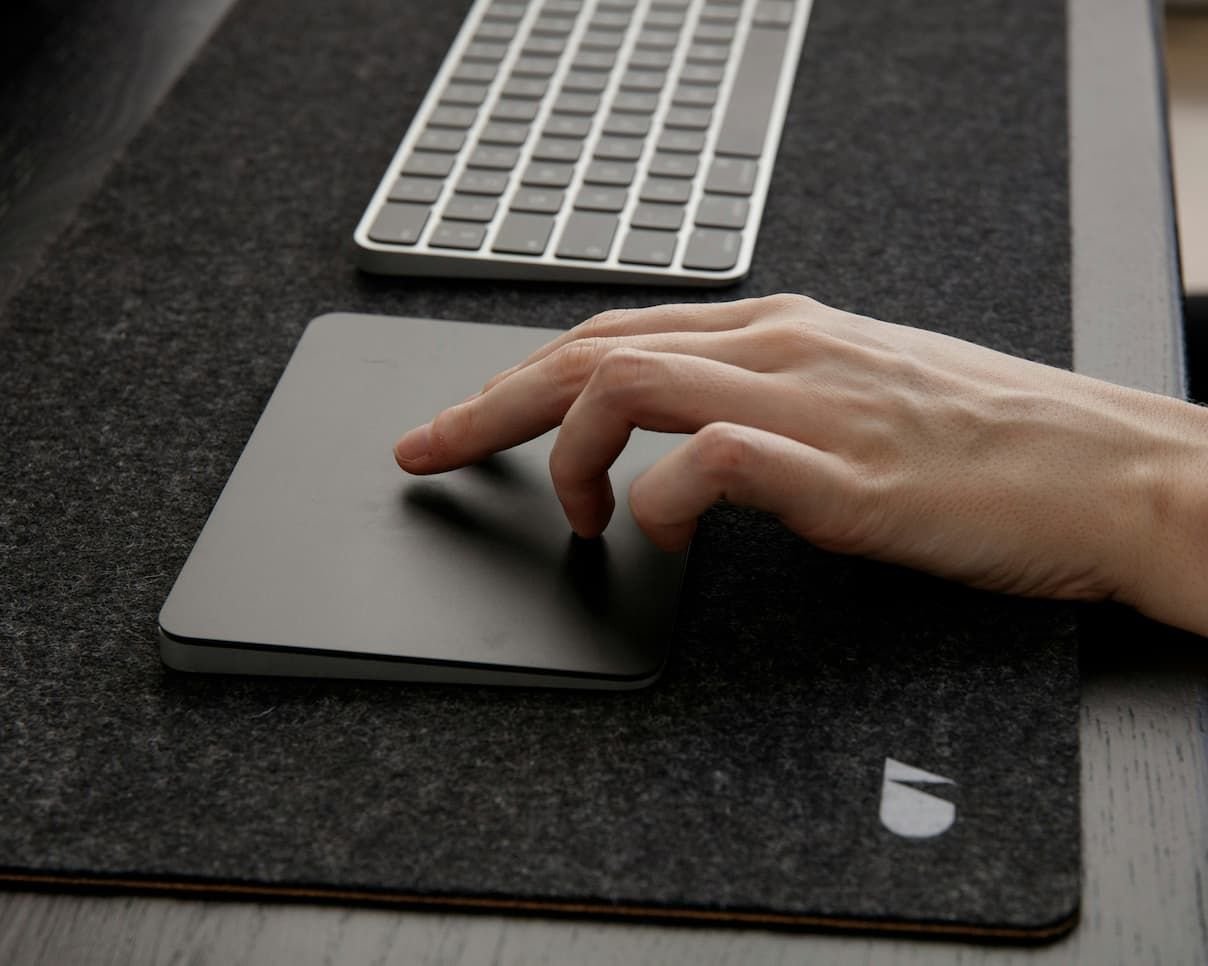
First: Magic Trackpad
No hump, no thumb rest, no side. Put it on the right, put it on the left, and you don't even change a setting. You get every Magic Mouse gesture and then some.
The obvious worry is ergonomics. A Harvard study compared a conventional mouse, a trackball, a stand-alone touchpad and a rollermouse. The touchpad, placed in the middle of the desk, gave more neutral shoulders and lower forearm extensor activity than the regular mouse[1]. The same study admits people found it among the hardest to use. At first, yes. It passes.
The real weakness is that one finger does all the work. My fix: when my index finger gets tired, I switch to the middle one. It sounds trivial. It splits the load in two.
And set it up properly, because that's where it becomes unbeatable:
- turn on tap to click, so you're not pressing all day;
- turn on three-finger drag (Accessibility → Pointer Control → Trackpad Options);
- use swipes to move between desktops, and Mission Control to see everything at once.
I looked for a cheaper alternative. On a Mac, there isn't one. Third-party trackpads do the basics, pointing and scrolling, but only Apple's gets the full macOS gesture set. If the price stops you, look for a refurbished one.
Second: Magic Mouse
If you'd rather stay with a mouse, the Magic Mouse is symmetrical and works fine left-handed: just swap primary and secondary click in your Mac's settings.
On its own, though, it's too flat. Add Elevation Lab's MagicGrips, two silicone strips that stick to the sides and widen your grip. They go on both sides, so the mouse stays ambidextrous. Officially they're made for Magic Mouse 1 and 2; the USB-C model has the same shell, but check recent reviews before you buy.
The other flaw has no fix: the charging port is underneath. While it charges, you can't use it. I can't stand that, but I understand anyone who won't give up the touch surface.
👉 Magic Mouse on Amazon · MagicGrips on Amazon
Third: Logitech M190
I tried the Logitech Pebble Mouse 2 first: silent, Bluetooth, feather-light. Perfect for travel, but too small for my hand. If your hands are small, or it lives in a backpack, it's still a great pick.
For everyday use I'd go for the Logitech M190. Logitech sells it as ambidextrous and built for medium to large hands, and it measures roughly 11.5 × 6.6 cm against the Pebble's 10.7 × 5.9. I haven't used it yet. One thing to know: there's no Bluetooth. It uses a USB-A receiver, so on a Mac with only USB-C ports you'll need an adapter.
👉 Logitech M190 on Amazon · Pebble Mouse 2 on Amazon
Fourth: the penguin
It looks odd. On purpose. The Posturite Penguin is a vertical mouse: your hand holds it sideways, like a handshake, and a switch in the middle flips it from right to left. Almost every vertical mouse is right-handed only, or comes as a separate left-handed model. Not this one.
I haven't used it. I'd recommend it to anyone who already has wrist pain, as long as you allow a few days to adjust. It comes in three sizes: measure from the first crease of your wrist to the tip of your middle finger (S up to 16 cm, M 16–18, L over 18). It's often out of stock.
Fifth: for gamers
Most "symmetrical" gaming mice still put the side buttons on the left only, which leaves a left-hander pressing them with their pinky. The Logitech G PRO 2 LIGHTSPEED fixes that with magnetic side buttons you can mount on either side, or both. I haven't used it. If you're curious about hands and gaming, I dug into it in ambidextrous gamers.
Switching hands
Here's why an ambidextrous mouse matters even if you're not left-handed. A 1999 study measured the cost of using your less experienced hand: about 180 milliseconds over the whole task, a gap that shrinks with practice. The authors actually recommend the other hand as a way to head off repetitive strain[2].
Another study moved people's mouse to the left: less shoulder flexion and less wrist extension. After a month they were faster and found it easier, though still a little slower than with the right[3]. And people who trained their non-dominant hand for six weeks got better with their dominant hand too[4].
Small studies, 11 to 27 people each. But they all point the same way.
The 15-minute rule
In the 2021 study, people trained their weaker hand for 15 minutes a day, five days a week, for six weeks. Steal the schedule: move your trackpad or mouse to the other side for a quarter of an hour, every day. Day one will feel like typing in gloves. That's normal.
To train your weaker hand away from the desk, start with these exercises to become ambidextrous. And if you're not sure where you stand yet, take the ambidextrous test first.
One symmetrical device. A new hand. Fifteen minutes.
What do you point with, and with which hand? Tell me in the comments, and if this helped, pass it to a left-handed friend still fighting the wrong mouse!

The mouse is just the start. Train the whole hand with the book